What's New

Instagram

About Me

Photo Profile
Meetanshi Architecture Designer

Meetanshi is found based on providing the best Magento Extensions and Customized eCommerce Business Solutions perfected to the users’ needs. Our Happy users make us Happy. Complete satisfaction to our clients is what drives and motivates us to work hard. Read More

Monday, December 16, 2024

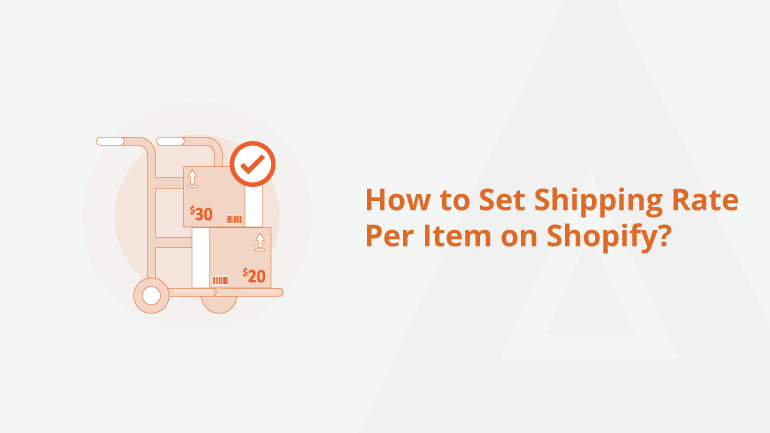
Step-by-Step Guide to Setting Per Item Shipping Rates in Shopify

Setting shipping rates per item in Shopify is a great way to ensure your shipping costs align with your business needs. Whether you want to charge a flat rate for each product or adjust rates based on product type, this guide will walk you through the process step-by-step.

Log In to Your Shopify Admin Panel

Log in to your Shopify account using your admin credentials. Once logged in, you’ll see the dashboard.

Navigate to Shipping and Delivery Settings

Go to Settings in the bottom-left corner of the dashboard. Select Shipping and delivery from the menu.

Set Up a Shipping Profile

Shipping profiles allow you to create specific rules for different products. Click Manage rates and then Create shipping profile if needed.

Add a Per Item Shipping Rate

Under "Shipping rates," click Add rate and name it (e.g., "Per Item Rate"). Input a flat rate per item and save it.

Configure Additional Conditions (Optional)

Set conditions like weight or order price under Add conditions. Adjust them based on your shipping needs.

Test Your Shipping Rates

Add a product to your cart, proceed to checkout, and input a shipping address. Confirm the rate reflects your per-item setup.

Inform Your Customers

Update your shipping policy to communicate the per-item rates. Include details on product pages, FAQs, or at checkout.


By following this guide, you can effectively implement per-item shipping rates in your Shopify store, giving you greater control over shipping costs and improving customer satisfaction.

For detailed blog:https://meetanshi.com/blog/how-to-set-shipping-rate-per-item-on-shopify/

Tuesday, December 10, 2024

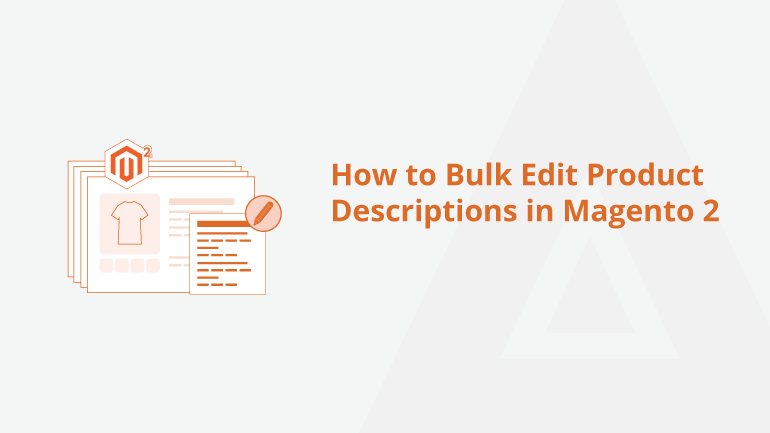
Simplify Bulk Product Description Updates in Magento 2: A Step-by-Step Guide

 Updating product descriptions in Magento 2 is essential for improving search engine rankings and creating a better user experience. However, manually editing descriptions for hundreds or thousands of products can be daunting. This guide explains how to simplify the process with bulk editing techniques and tools.

Why Bulk Editing Product Descriptions Matters

Bulk editing product descriptions is crucial for maintaining a consistent, SEO-optimized, and user-friendly catalog, especially for stores with large inventories. It saves time by streamlining updates across multiple products, ensures uniformity in branding, and improves search engine visibility. By updating descriptions in bulk, you can enhance the overall shopping experience, boost engagement, and drive better conversion rates without the hassle of manual edits.


Why Choose Meetanshi’s AI Content Generator?

Meetanshi’s AI Content Generator is the ideal choice for bulk editing product descriptions, offering a blend of efficiency and quality. It saves time by automating manual updates, generates SEO-friendly descriptions with relevant keywords, and ensures consistency in tone and structure. With its simple setup and intuitive interface, it’s a user-friendly tool designed to enhance your store's content and improve search engine performance effortlessly.

Conclusion

Bulk editing product descriptions in Magento 2 no longer needs to be a manual, time-consuming task. By using Meetanshi’s AI Content Generator, you can automate the process, ensure content consistency, and improve SEO rankings for your store.

For a detailed blog : https://meetanshi.com/blog/how-to-bulk-edit-product-descriptions-in-magento-2/

Monday, December 9, 2024

Effortless Bulk Editing: Update Magento 2 Product Descriptions Like a Pro

Managing a Magento 2 store with a large inventory can be challenging, especially when updating product descriptions. Editing descriptions individually can take hours, but with bulk editing, you can save time while ensuring consistency across your catalogue. This guide walks you through how to effectively bulk edit product descriptions in Magento 2.


Product Descriptions and SEO:

Well-written descriptions enhance product visibility and boost search engine rankings.

Manual Updates Are Tedious:

Manually editing large inventories in Magento 2 takes time and effort.

 No Default Mass Edit Feature:

Magento 2 lacks a built-in feature for bulk editing product descriptions.

Meetanshi’s AI Content Generator:

Use AI to automate and bulk edit product descriptions quickly and easily.

Time-Saving Edits:

Update hundreds of product descriptions in minutes without extra effort.

 Customizable AI Prompts:

Tailor AI-generated content to align with your brand’s tone and SEO goals.

Direct AI Integration:

Generate descriptions directly within Magento without needing external tools.

Cross-Page Editing:

Apply updates to multiple products or categories simultaneously with a few clicks.

 Easy Setup and Use:

Install the extension, select products, and let the AI generate optimized descriptions.

Simplify Content Updates:

Save time, improve consistency, and boost SEO effortlessly with AI-powered bulk editing.

Conclusion

Bulk editing product descriptions in Magento 2 can significantly improve operational efficiency and ensure consistent messaging across your store. Whether you use Magento’s admin panel, import/export tools, third-party extensions, or custom scripts, the right approach depends on your store’s needs and scale.


For a detailed blog: https://meetanshi.com/blog/how-to-bulk-edit-product-descriptions-in-magento-2/


Understanding Shopify Expert Pricing: Factors That Affect Hourly & Fixed Rates

When hiring a Shopify expert, understanding the cost structure is essential for budgeting and ensuring you get the best value for your investment. Shopify experts offer a range of services, from store setup to advanced customizations and marketing strategies. In this blog, we will explore the factors that influence Shopify expert pricing, including hourly and fixed rates.


Experience and Expertise

The expert’s experience impacts their rates, with seasoned professionals charging higher due to their specialized skills and proven results. Niche experts in areas like app development or SEO tend to charge more for their expertise.


Scope of Work

Simple tasks like theme customization cost less, while large-scale projects like custom store builds or integrations are more expensive. Complex projects may range from $1,000 to $10,000+ depending on the scope and deliverables.


Type of Pricing Model

Hourly rates provide flexibility for small or ongoing tasks, typically ranging from $50 to $150 per hour. Fixed rates are ideal for clearly defined projects, providing cost predictability.


Location of the Expert

Experts in high-cost regions like North America or Western Europe generally charge more, typically $100 - $200+ per hour. Experts from areas with lower living costs, like Eastern Europe or Southeast Asia, charge less, ranging from $30 - $75 per hour.


 Project Timeline

Urgent projects with tight deadlines often incur a premium, with rates increasing by 25% or more. Faster turnaround times may result in higher costs for expedited services.


 Maintenance and Ongoing Support

Ongoing maintenance, updates, and troubleshooting are typically billed at $50 - $100+ per hour. Regular support costs can add up after the initial project is completed.


Customization and Design

Custom design and functionality are more expensive due to the expertise required for unique themes and third-party integrations. Customization work typically costs more than basic theme setups or app installations.


For a detailed blog:https://meetanshi.com/blog/how-much-does-it-cost-to-hire-a-shopify-expert/ 

How to Redirect Customers After Login and Logout in Shopify: A Step-by-Step Guide

 Redirecting customers to specific pages after login and logout in Shopify enhances user experience by directing them to relevant sections, such as a personalized dashboard, promotional page, or homepage. This guide outlines simple steps to achieve this using Shopify's built-in features and custom code.


Why Redirect Customers After Login and Logout?

Post-login redirects can direct users to their account, exclusive offers, or a welcome page. Post-logout redirects can guide them to the homepage, thank-you page, or promotional content.


Step 1: Access Your Shopify Admin

Log in to your Shopify admin and navigate to Online Store > Themes. Click Customize to open the theme editor.


Step 2: Modify Theme Code for Redirects

Access the theme files by selecting Actions > Edit Code. Look for login and logout liquid files to add redirect rules.


Step 3: Test the Redirects

Log in and log out from your store to ensure the redirects work. Clear your browser cache if changes are not visible.


Step 4: Use Third-Party Apps (Optional)

Apps like Easy Redirects or ReConvert Upsell & Cross Sell provide no-code solutions for setting up redirects efficiently.


Conclusion

Redirecting customers after logging and logging out in Shopify is a practical way to improve their experience and guide them to valuable pages. Whether you choose to use custom code or third-party apps, this small tweak can significantly enhance your store’s navigation and customer satisfaction.

For a detailed blog:https://meetanshi.com/blog/redirect-shopify-customers-after-login-logout/

Friday, December 6, 2024

Boosting Your Shopify Store: Essential Tips for Maximizing Sales in 2024

 Running a Shopify store is an excellent way to enter the world of e-commerce, but growing sales requires a strategic approach. With competition at an all-time high, leveraging the right strategies and tools can set your store apart. Here’s a comprehensive guide to boosting your Shopify store's sales in 2024.

Optimize for SEO: Improve search visibility by using relevant keywords, optimizing meta tags, and enhancing site speed with Shopify's SEO tools.

Leverage Social Proof: Use review collection apps to display customer reviews and testimonials to build trust and influence purchase decisions.Use Upselling and Cross-Selling: Encourage higher spending by recommending complementary or premium products via apps like Bold Upsell.

 Engage with Email Marketing: Send personalized emails, abandoned cart reminders, and exclusive offers to nurture leads and boost repeat sales.


Boosting sales on Shopify in 2024 requires a mix of proven strategies and innovative approaches. Your Shopify store can stay competitive and achieve sustained growth by focusing on SEO, UX, marketing, and data-driven decisions. Implement these tips to see measurable improvements and outpace your competition.

For a detailed blog https://meetanshi.com/blog/how-to-increase-sales-on-shopify/

Tuesday, December 3, 2024

Step-by-Step Guide to Sync Magento 2 with Zoho Inventory for Seamless Management

 Integrating Zoho Inventory with your Magento 2 store allows for seamless management of inventory, orders, and stock levels. By automating the synchronization between the two platforms, you can save time and reduce errors in managing products. This guide will walk you through the steps to sync Magento 2 with Zoho Inventory effortlessly.

et Up Your Zoho Inventory Account – Create a Zoho Inventory account, input company details, and set up products, customers, and suppliers. This ensures your inventory is ready for integration.

Install the Zoho Inventory Extension for Magento 2 – Find and install the Zoho Inventory extension from the Magento Marketplace, then configure it in the Magento Admin Panel. This extension facilitates easy integration between both platforms.

Connect Magento 2 with Zoho Inventory – Enter your Zoho Inventory API Key and Client Secret in the Magento admin panel to link the two systems. Ensure the connection is tested for accuracy.

Configure Synchronization Settings – Decide on automatic or manual syncing for product inventory, orders, and product details between Magento 2 and Zoho Inventory. This ensures data is synchronized seamlessly across platforms.

Sync Products Between Magento 2 and Zoho Inventory – Sync your product information, including SKUs, prices, and stock quantities, between the two platforms. Test the sync with a few products first before syncing all items.

Sync Orders and Track Stock Levels – Enable automatic order syncing, so Magento 2 orders are sent to Zoho Inventory, and stock levels update in real-time. This prevents stock discrepancies and overselling.

Monitor and Troubleshoot the Integration – Regularly monitor inventory levels and order syncing between both systems, checking for errors in the logs. Troubleshoot any issues promptly to maintain smooth operations.


Conclusion

Syncing Magento 2 with Zoho Inventory can significantly streamline your inventory management process and ensure that you always have accurate stock levels. By following this step-by-step guide, you’ll be able to integrate the two platforms effectively, automate workflows, and improve efficiency. With accurate inventory data and seamless order tracking, you’ll be able to focus more on growing your business rather than worrying about stock errors.

For a detailed blog:https://meetanshi.com/blog/how-to-integrate-magento-2-zoho-inventory/


Step-by-Step Checklist to Set Up Your Shopify Store in 2024

 Setting up a Shopify store can seem daunting, but with a structured approach, you can launch your store smoothly. This checklist guides you through every essential step to help you create and manage a successful Shopify store in 2024.

Create a Shopify Account – Sign up on Shopify and choose a store name.

Select the Right Plan – Choose a plan based on your business needs and budget.

Set Up Your Domain Name – Purchase or connect a custom domain for a professional look.

Customize Your Store Design – Choose a theme and personalize it to match your brand.

Add Products to Your Store – Upload high-quality images and product details for your offerings.

Configure Payment Gateways – Set up multiple payment options for a smooth checkout process.

Define Shipping Settings – Set shipping rates and zones, and enable discounted shipping options.

Optimize for SEO – Use SEO-friendly titles, descriptions, and keywords to improve visibility.

Test Your Store – Place test orders and check responsiveness, load times, and navigation.

Launch Your Store – Announce your store launch with promotions and discounts for initial sales.


Conclusion

With the right steps, setting up a Shopify store is straightforward. Follow this checklist to ensure your store is professional, user-friendly, and ready for success. With your Shopify store set up, you’ll be equipped to tap into the growing e-commerce market in 2024.

For a detailed blog:https://meetanshi.com/blog/how-to-set-up-a-shopify-store/


Get more of our update !