What's New

Instagram

About Me

Photo Profile
Meetanshi Architecture Designer

Meetanshi is found based on providing the best Magento Extensions and Customized eCommerce Business Solutions perfected to the users’ needs. Our Happy users make us Happy. Complete satisfaction to our clients is what drives and motivates us to work hard. Read More

Thursday, December 19, 2024

How to Secure Your Magento Store with the APSB24-73 Update

 In today’s digital landscape, ensuring the security of your eCommerce platform is paramount. With the APSB24-73 security patch update released for Magento, it’s time to protect your store and customer data from potential vulnerabilities. This blog walks you through the essentials of the APSB24-73 update and how to implement it effectively in your Magento store.


What is the APSB24-73 Security Patch Update?


The APSB24-73 update addresses critical vulnerabilities in the Magento platform that could potentially expose your store to security threats such as unauthorized access, data breaches, and malicious attacks. This patch is part of Adobe’s ongoing efforts to enhance the security and reliability of Magento.


Key Fixes in APSB24-73:


Protection against remote code execution (RCE) vulnerabilities.

Strengthening of authentication processes.

Prevention of cross-site scripting (XSS) attacks.

Additional measures to secure sensitive customer data.


Conclusion

The APSB24-73 security patch is a critical update that helps protect your Magento store against emerging threats. By promptly applying the patch and following best practices for eCommerce security, you’re taking proactive steps to safeguard your business and customer data.

Don’t delay—secure your Magento store today with the APSB24-73 update and ensure a safe shopping experience for your customers.


For a detailed blog:https://meetanshi.com/blog/apsb24-73-security-patch/
Step-by-Step Guide to Fix serializeArray() Issues in jQuery Forms

 The serializeArray() function in jQuery is a powerful tool for collecting form data in a structured format. However, there are times when it may return an empty array, leading to frustration for developers. This guide outlines the common causes and solutions to fix serializeArray() issues in jQuery forms.


Common Causes of serializeArray() Returning an Empty Array

The form element is missing or incorrectly selected due to an inaccurate selector or DOM timing issues.

Form inputs lack name attributes, which are necessary for data collection.

Hidden or disabled inputs are ignored by default, leading to incomplete serialization.

The script runs before the DOM is fully loaded, causing the form elements to be unavailable.

Steps to Fix serializeArray() Issues

Ensure correct form selection by verifying the selector and checking the form’s presence in the DOM.

Add name attributes to all form inputs to make them serializable.

Include hidden or disabled inputs by enabling them before running serializeArray().

Ensure the DOM is fully loaded before executing the script.

Debug using console logs to inspect the form and its inputs for issues.

Use alternative serialization methods like serialize() if problems persist.


Conclusion

Fixing serializeArray() issues in jQuery forms often requires careful attention to the form structure, input attributes, and timing of script execution. By following these steps, you can resolve common problems and ensure reliable form data serialization. For complex forms, consider custom solutions or additional debugging to address unique challenges.

For a detailed blog:https://meetanshi.com/blog/how-to-fix-serializearray-returning-empty-array-in-jquery/

Wednesday, December 18, 2024

Steps to Install Extensions from Magento Marketplace

 Magento is a powerful and flexible eCommerce platform, and extensions from the Magento Marketplace allow store owners to enhance functionality and optimize their operations. This guide will walk you through the steps to install and configure extensions from Magento Marketplace, ensuring a seamless integration into your online store.

Why Use Magento Marketplace Extensions?

Magento Marketplace is the official store for Magento extensions, offering a wide range of tools for various purposes, such as improving site performance, boosting SEO, enhancing customer experience, and adding new features. These extensions are thoroughly vetted, ensuring compatibility and security.

Steps to Install Extensions from Magento Marketplace

Log in to your Magento Marketplace account, find the desired extension, and review its compatibility. Purchase or download it, then retrieve authentication keys from My Profile > Access Keys. Log in to your Magento Admin Panel, navigate to System > Web Setup Wizard > Component Manager, and log in using your keys. Locate the extension and click Install, resolve any issues in the readiness check, and clear the cache after installation to complete the process.


Conclusion

Installing and configuring extensions from Magento Marketplace can significantly enhance your store’s functionality and user experience. By following the steps outlined in this guide, you can ensure a smooth installation process and get the most out of your chosen extensions. Always remember to keep your Magento store updated and secure to maintain optimal performance.


For a detailed blog :https://meetanshi.com/blog/how-to-install-extension-from-magento-marketplace/

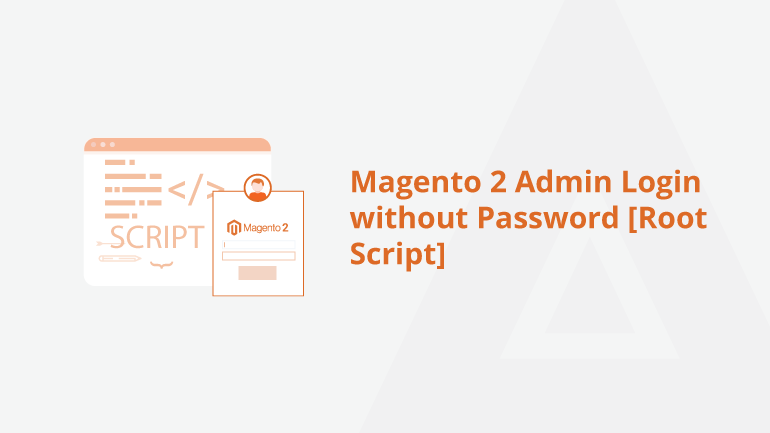
Access Magento 2 Admin Panel Without a Password: A Step-by-Step Guide

 Accessing the Magento 2 Admin panel with a password can be a lifesaver if you need to remember your credentials or are troubleshooting access issues. However, this should be done cautiously to ensure the security of your store. This guide provides a step-by-step process to log in without a password by creating a new admin user programmatically via the Magento CLI or database.

Why Log in Without a Password?


Forgotten Credentials: When you cannot retrieve the password through the reset option.

Locked Out: If the email for password recovery is inaccessible.

Troubleshooting: For debugging issues in a test or development environment.

Emergency Access: To quickly regain control over the store during critical situations.


Using Magento CLI to Create a New Admin User

Magento 2’s command-line interface (CLI) provides a secure and efficient method to regain admin access without a password. Begin by accessing your server via SSH and navigating to the Magento root directory. Run the appropriate command to create a new admin user, entering details like username, email, and password as prompted. Use the newly created credentials to log in to the Magento 2 admin panel. This method ensures quick and secure access.

Resetting Admin Password via Database

If CLI access is unavailable, you can reset the password directly through the database. Use tools like phpMyAdmin or MySQL CLI to access the Magento database. Using Magento's encryption method, locate the desired admin user and update the password field with a new, hashed password. Clear the cache to ensure changes occur, and log in with the updated credentials. This approach is useful for database-level interventions.

Creating a Temporary Admin User with a PHP Script

You can create a PHP script to generate a temporary admin user for development environments. Execute the script to set up a user with administrative privileges, and log in using the generated credentials. Delete the script immediately after use to prevent unauthorized access. While this method is effective, it is not recommended for production environments due to potential security risks.

 REFERENCE:

How to Integrate Xero With Magento 2? Easy Guide


Integrating Xero with Magento 2 simplifies your eCommerce business’s accounting and financial management. By connecting these platforms, you can streamline operations, reduce manual tasks, and focus on scaling your store. Here’s a closer look at the top benefits of integrating Xero with Magento 2.


Automated Data Synchronization


Integration ensures that all sales, invoices, payments, and credit notes from your Magento 2 store are automatically synchronized with Xero. This eliminates the need for manual data entry, reducing errors and saving time.


Real-Time Financial Updates


With Xero integration, your financial records are updated in real time. Every transaction on your Magento 2 store, including orders and refunds, is instantly reflected in Xero. This helps you monitor cash flow and financial health without delay.


Accurate Tax Management

Xero’s robust tax management features ensure compliance with local and international tax regulations. By integrating with Magento 2, tax details from your orders are automatically mapped and recorded, simplifying tax reporting and filing.


 Streamlined Invoicing

Generate and send professional invoices effortlessly. The integration allows Magento 2 to automatically create invoices in Xero for every order, ensuring accurate billing and a seamless invoicing process.


Improved Inventory Management


Synchronizing Magento 2 and Xero ensures that your inventory levels are up-to-date. Sales data from your store automatically adjusts inventory records in Xero, helping you maintain accurate stock levels and avoid overselling.


Enhanced Reporting and Analytics


Xero’s powerful reporting tools provide detailed insights into your business’s performance. With Magento 2 integration, you can track sales, profits, expenses, and other key metrics effortlessly. This enables better decision-making and strategic planning.


Reduced Administrative Workload


By automating repetitive tasks like data entry, invoicing, and tax calculations, Xero integration frees up valuable time for your team. This allows you to focus on growing your business instead of being bogged down by administrative duties.


conclusion


Integrating Xero with Magento 2 is a game-changer for eCommerce businesses. It simplifies accounting, enhances accuracy, and saves time, allowing you to focus on growth. If you’re looking to streamline your financial management, consider integrating Xero with your Magento 2 store today.


For a detailed blog:https://meetanshi.com/blog/how-to-integrate-xero-with-magento-2/

Tuesday, December 17, 2024

10 Essential SEO Tips to Help Magento Sites Get Indexed on Google

 Getting your Magento site indexed on Google is a critical step in improving your online visibility and attracting organic traffic. Follow these essential SEO tips to ensure your Magento store gets indexed quickly and effectively.


Submit Your Sitemap to Google Search Console


Submit your Magento sitemap to Google Search Console for efficient indexing. This helps search engines understand your site structure.


Optimize Robots.txt File


Check your robots.txt file to ensure important pages are crawlable. Avoid accidentally blocking crucial pages like products or categories.


 Enable Canonical URLs


Enable canonical URLs to prevent duplicate content issues. This ensures Google focuses on the primary version of your pages.


Implement Structured Data


Add schema markup for products, reviews, and breadcrumbs. Structured data improves your chances of appearing in rich search results.


Improve Site Speed


Enhance load times by using caching, compressing images, and a CDN. Faster sites improve user experience and indexing potential.


Create High-Quality Content


Develop unique, keyword-rich content like blogs and product descriptions. Valuable content attracts both users and search engines.

 Build High-Quality Backlinks


Earn backlinks from trusted sites to boost domain authority. Quality links signal Google that your site is worth indexing.


Fix Broken Links


Audit your site for broken links and repair them promptly. Broken links hinder both user experience and Googlebot crawls.


Ensure Mobile-Friendliness


Make your site responsive to meet Google’s mobile-first indexing. A mobile-friendly design is essential for better rankings.


Use Internal Linking Strategically


Create descriptive internal links to guide users and Google. This boosts crawl efficiency and relevance for search engines.


Implementing these SEO tips will help your Magento site get indexed on Google faster and improve its search visibility. Regular audits and updates ensure your site remains optimized and competitive in search rankings.


For a detailed blog:https://meetanshi.com/blog/shopify-schema-markup/


Top 5 Tools to Generate Schema Markup for Your Shopify Store

 Implementing schema markup on your Shopify store can significantly improve your search engine visibility, click-through rates, and overall SEO performance. However, crafting the perfect structured data manually can take time and effort. Fortunately, there are tools available to simplify this process. Here are the top five tools to generate schema markup for your Shopify store

Schema Markup Generator by Merkle

This free tool helps create structured data for products, articles, and more. Generate JSON-LD code instantly and validate it using Google’s Rich Results Test.

Google’s Structured Data Markup Helper

Tag elements visually on your webpage to create JSON-LD code. Align your schema with Google’s rich result requirements with this beginner-friendly tool.

RankRanger Schema Markup Generator

Customize schema for products, reviews, and more with detailed fields. Copy the generated JSON-LD code and paste it into your Shopify theme.

JSON-LD for SEO by Webappick

This Shopify app automates adding structured data to products, blogs, and collections. It’s an easy-to-use solution for beginners and advanced users alike.

 Schema Pro

A premium tool that creates advanced schema templates. Integrate JSON-LD code into your Shopify theme manually for detailed structured data.


Adding schema markup to your Shopify store is a crucial step toward improving your SEO and search engine presence. Each of the tools listed above caters to different levels of expertise and needs. Tools like Google’s Structured Data Markup Helper and JSON-LD for SEO are excellent choices for beginners. Advanced users can benefit from the extensive customization options offered by Schema Pro and RankRanger. Choose the tool that aligns best with your store’s requirements and watch your organic traffic grow.

For a detailed blog:https://meetanshi.com/blog/shopify-schema-markup/

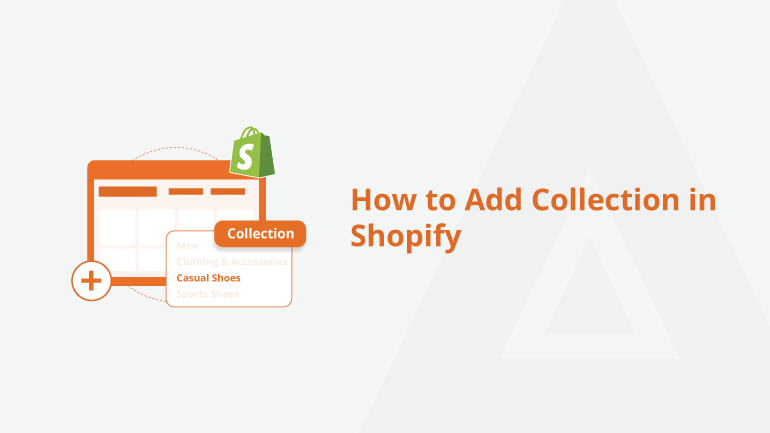
Shopify Collection Ideas: How to Make Your Store Stand Out

Creating thoughtful and creative collections in Shopify can help improve customer navigation and boost sales. Below are some innovative collection ideas to make your store stand out and provide a better shopping experience.

Seasonal Collections

Create collections based on seasons, such as "Summer Favorites," "Winter Essentials," or "Spring Trends." This will help customers quickly find seasonally relevant products.

Holiday-Themed Collections

Organize products for holidays like Christmas, Halloween, or Valentine’s Day. For example, a "Holiday Gift Guide" collection can showcase products ideal for gifting.

Best Sellers

Highlight your store’s most popular products by grouping them into a "Best Sellers" collection. Customers are often drawn to what others are buying.

 New Arrivals

Create a collection specifically for newly launched products. Label it "Just In" or "New Arrivals" to attract shoppers looking for the latest items.


Sale and Discount Collections

Group discounted items in a "Deals of the Week" or "Clearance Sale" collection. This makes it easy for bargain hunters to find great deals.


 By Product Category

Organize products into collections like "Men’s Clothing," "Home Decor," or "Electronics." Clear categorization simplifies navigation and enhances user experience.


 Occasion-Based Collections

Create collections tailored to specific events or occasions, such as "Wedding Essentials," "Back to School," or "Weekend Getaways."


Eco-Friendly Products

If your store offers sustainable or eco-friendly products, group them under a collection like "Eco-Friendly Finds" or "Sustainable Choices."


Exclusive or Limited-Edition Products

Highlight exclusive products in a collection labelled "Limited Edition" or "Exclusive Picks." This can create a sense of urgency and exclusivity.


For detailed blog:https://meetanshi.com/blog/how-to-add-collection-in-shopify/


Get more of our update !